

Cart Wall
Every spot and every bump, one press away.
 Enlarge
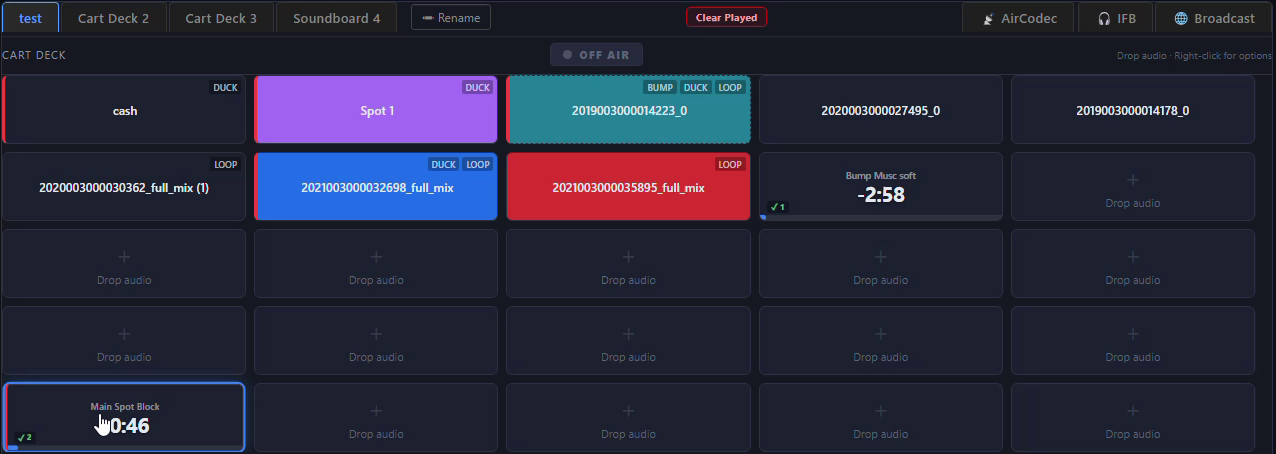
The cart wall runs everything you play during a game: the commercials, the bump music, the station IDs and the drops. It sits across the top of SportsCaster Pro as four banks of carts, each bank named for what it holds.
Drag audio straight in from Windows Explorer, right-click a cart to set it up, and press it to play. Every cart counts down while it plays and keeps a tick of how many times it has run.
Commercials mute the mics
Tick commercial mode on a cart and every mic is muted while it plays. The bar across the bottom of the screen turns red, and the mics come back on when the spot ends.
A whole break on one cart
Load every spot in the break onto one cart. One press runs them back to back with no gap, and the countdown covers the entire break.
Bump music that rotates
Put several beds on one cart and every press plays the next one: in order, at random, or shuffled so none repeats until all have played. They fade out smoothly when you stop them.
Ready for the next game
Rename and colour carts, loop a bed, check a cart's played log, then press Clear Played to wipe every tick before the next game.
Commercials
Plays the commercials.
Drag a spot in from Windows Explorer, name it for the sponsor and turn on commercial mode, and the mics mute every time it plays. Build a whole break into one cart and a single press runs it.
How commercials workSeven steps, from Windows Explorer to the break on air. Click any step to see the real screen.
- 1Drag spots in
- 2Name the cart
- 3Turn on commercial mode
- 4Play the spot
- 5Build a massive spot block
- 6Choose how it plays
- 7One press, the whole break
 Enlarge
Step 1 of 7
Drag spots in
You
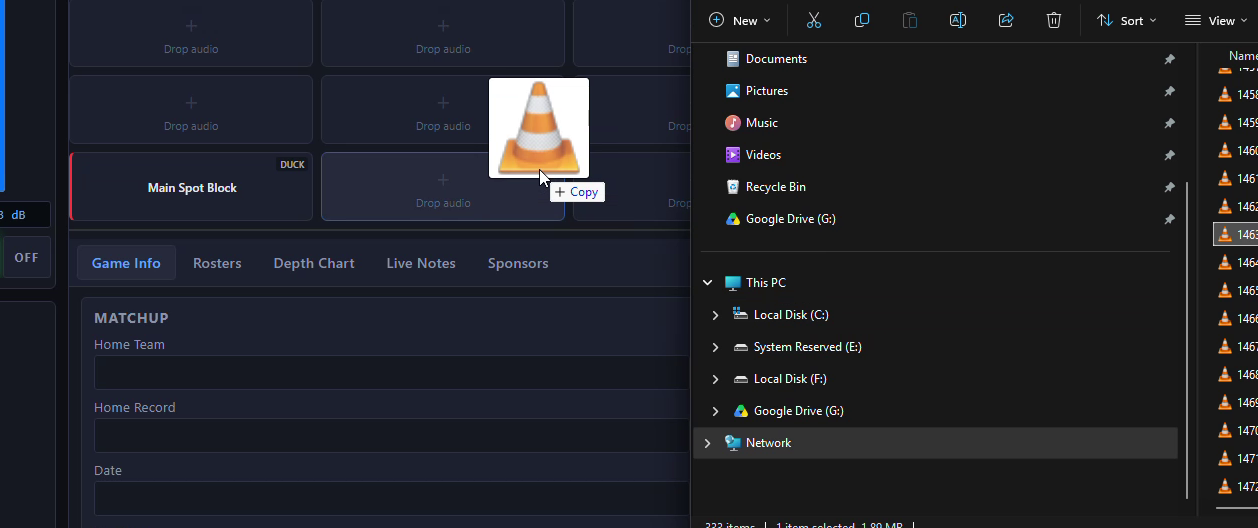
Open Windows Explorer beside SportsCaster Pro and drag a spot onto any empty cart.
SportsCaster Pro
Loads it straight onto the cart, named after the file and ready to play.
 Enlarge
Step 2 of 7
Name the cart
You
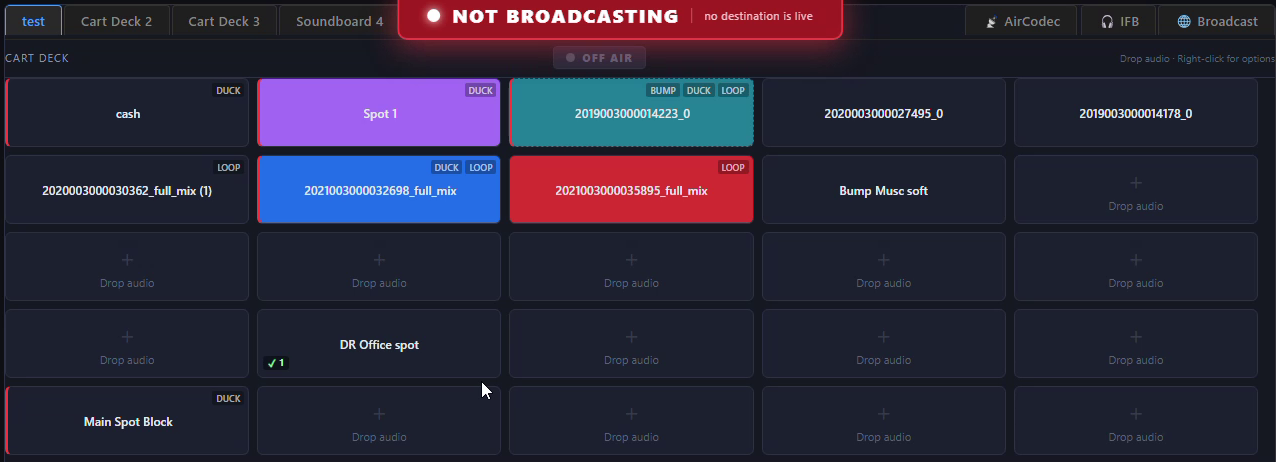
Right-click the cart, choose Rename, and type the sponsor's name.
SportsCaster Pro
Shows the new name on the cart, so the operator can see at a glance whose spot it is.
 Enlarge
Step 3 of 7
Turn on commercial mode
You
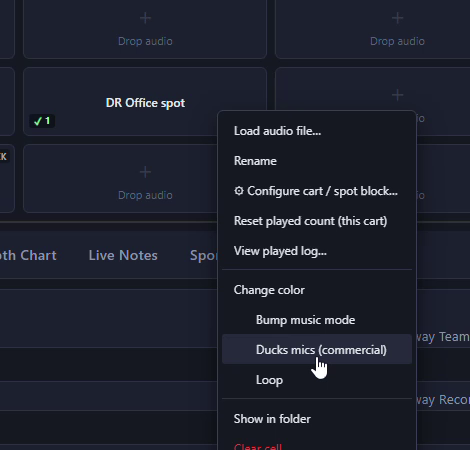
Right-click the cart and tick Ducks mics (commercial).
SportsCaster Pro
Tags the cart DUCK. From then on, every time it plays, the mics are muted.
 Enlarge
Step 4 of 7
Play the spot
You
Press the cart.
SportsCaster Pro
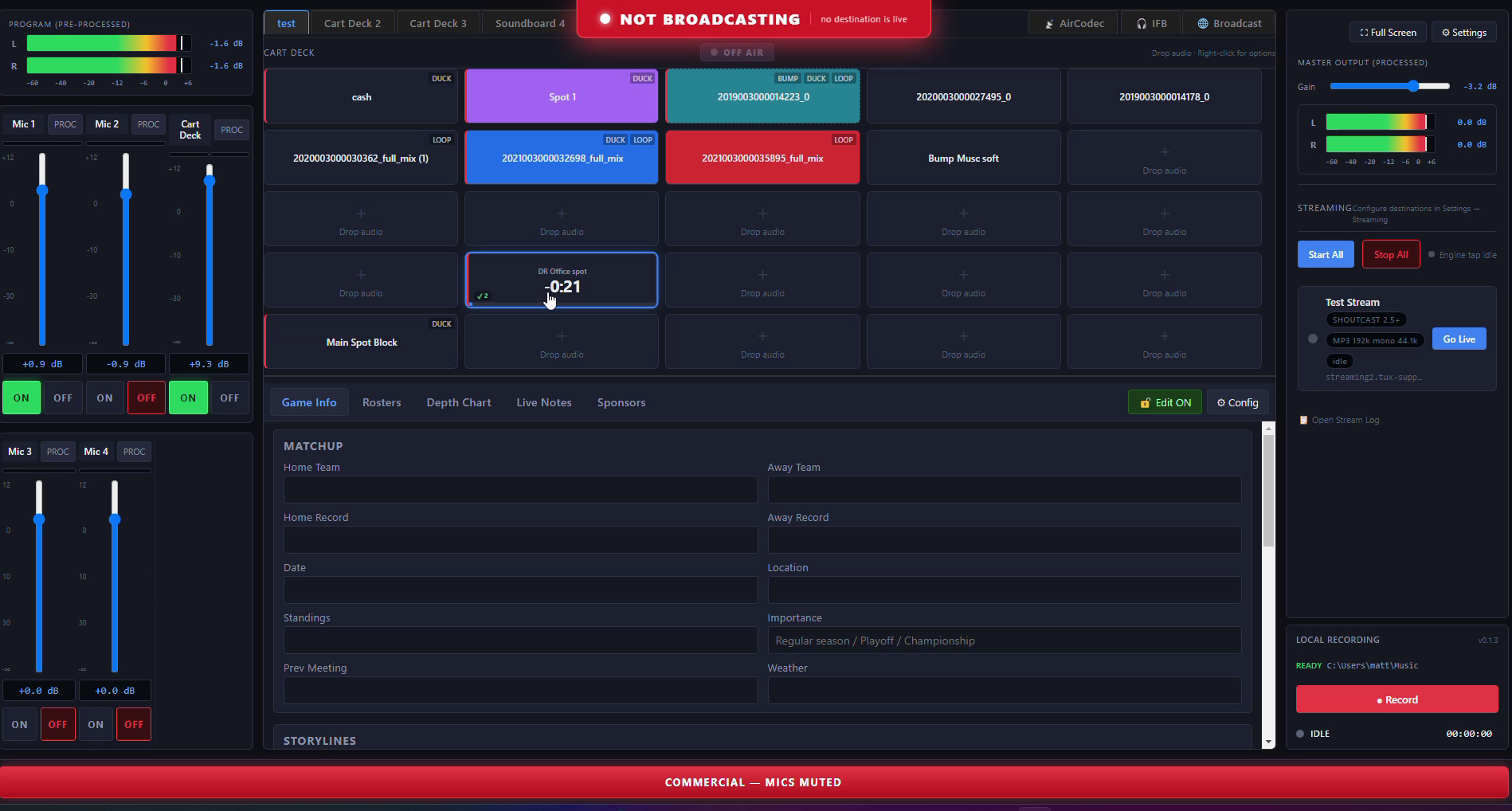
Counts the spot down on the cart, mutes every mic and turns the bar across the bottom red: COMMERCIAL, MICS MUTED. When the spot ends, the mics come back on their own.
 Enlarge
Step 5 of 7
Build a massive spot block
You
Right-click a cart, choose Configure cart / spot block, click Add audio and pick every spot in the break, as many as you need.
SportsCaster Pro
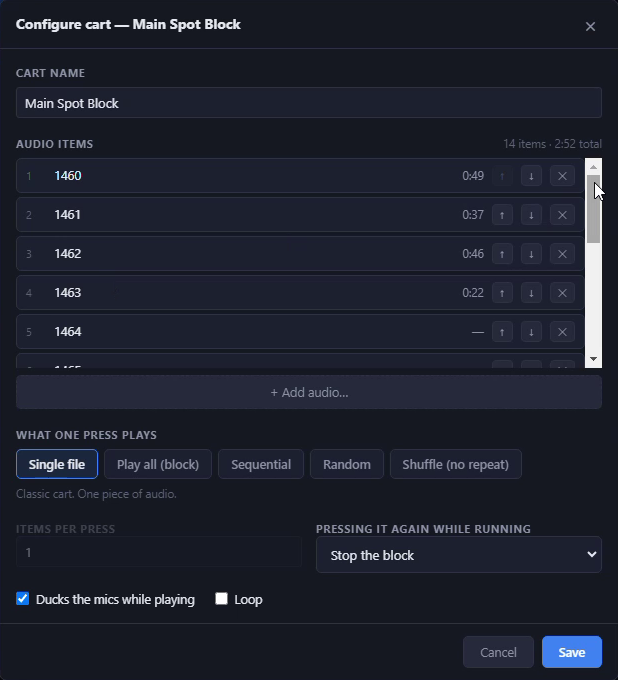
Lists them in play order with each spot's length and the running total: here, 14 spots and 2:52. Move a spot up or down with the arrows, or take it out with the ×.
 Enlarge
Step 6 of 7
Choose how it plays
You
Pick what one press plays, and what a second press does while it is running.
SportsCaster Pro
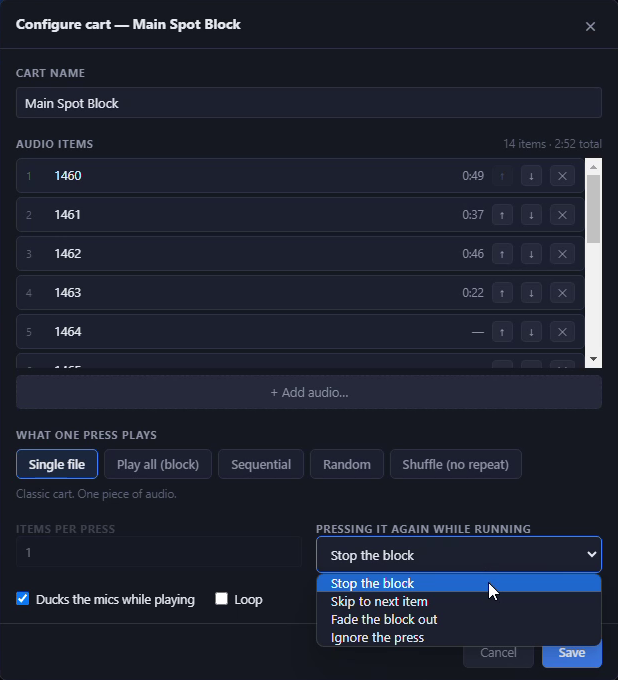
Play all runs the whole break back to back. A second press can stop the block, skip to the next spot, fade the block out, or be ignored, so a nervous thumb never kills a break.
 Enlarge
Step 7 of 7
One press, the whole break
You
Press the spot block once.
SportsCaster Pro
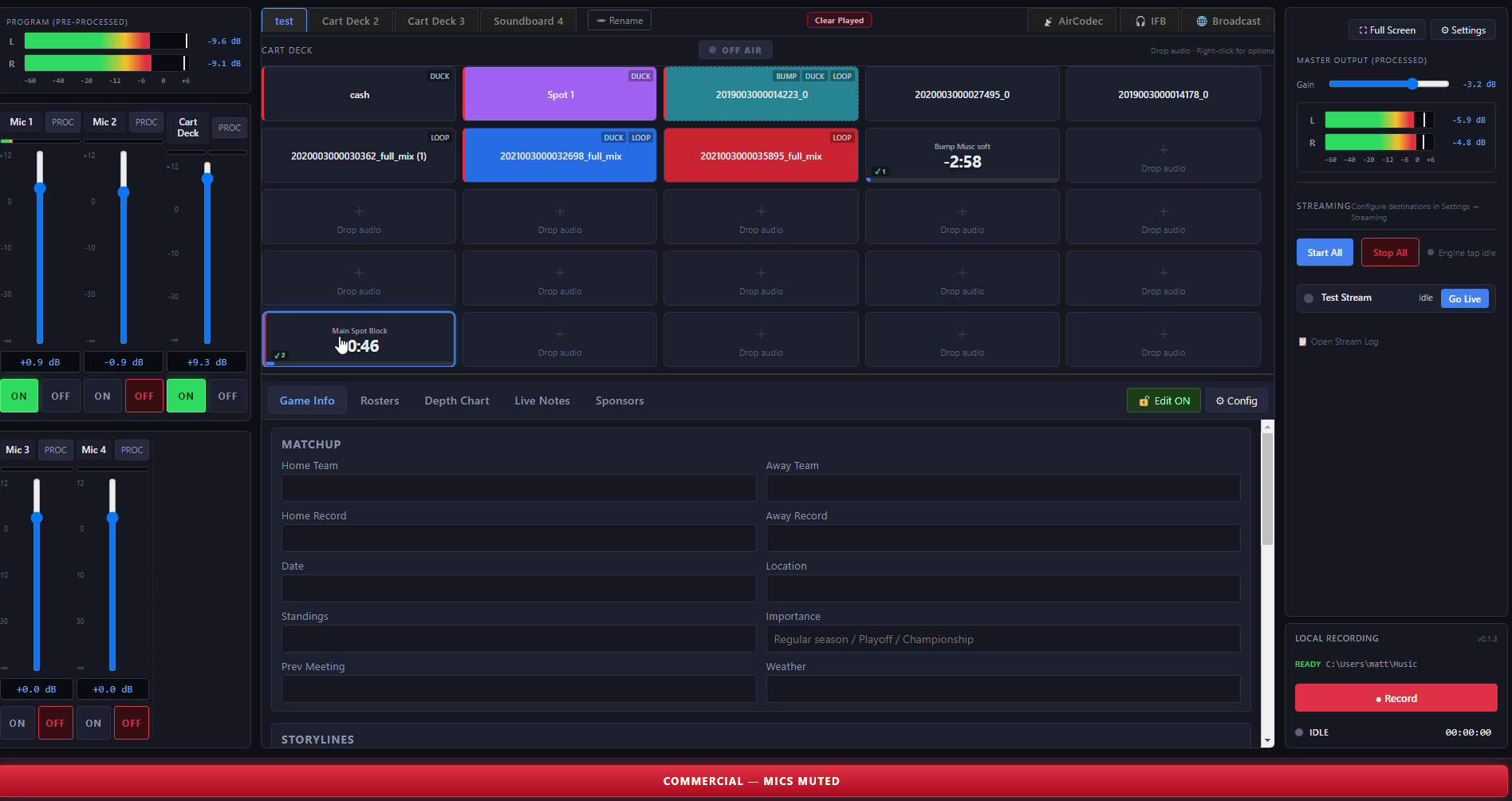
Runs every spot back to back with no gap, counts down on the cart, and keeps the mics muted until the last spot has played.
Bump music
Bump music, rotated for you.
Bump beds go on the cart wall the same way spots do. Turn on bump music mode and a bed fades out smoothly when you stop it, instead of cutting off. Put several beds on one cart and every press plays a different one.
Each press plays the next bed in the shuffle. None repeats until all of them have played.
How bump music worksFive steps, from Windows Explorer to the bed on air. Click any step to see the real screen.
 Enlarge
Step 1 of 5
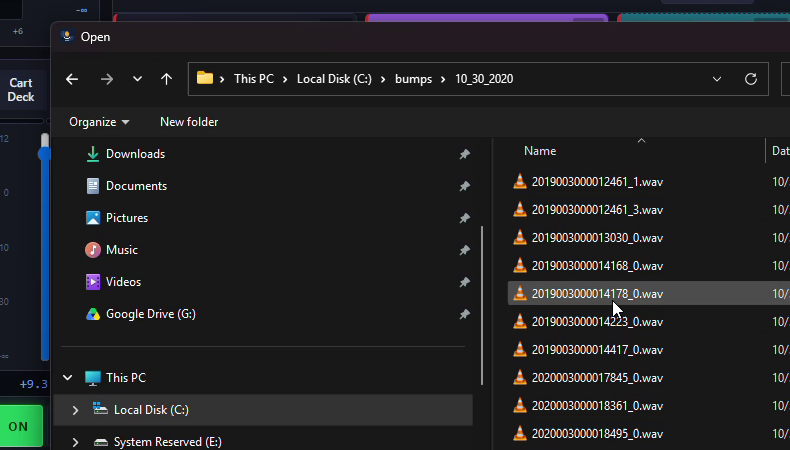
Load the bump music
You
Drag a bump bed out of Windows Explorer onto an empty cart, or right-click the cart, choose Load audio file, and pick it.
SportsCaster Pro
Puts the bed on the cart, named after the file and ready to play.
 Enlarge
Step 2 of 5
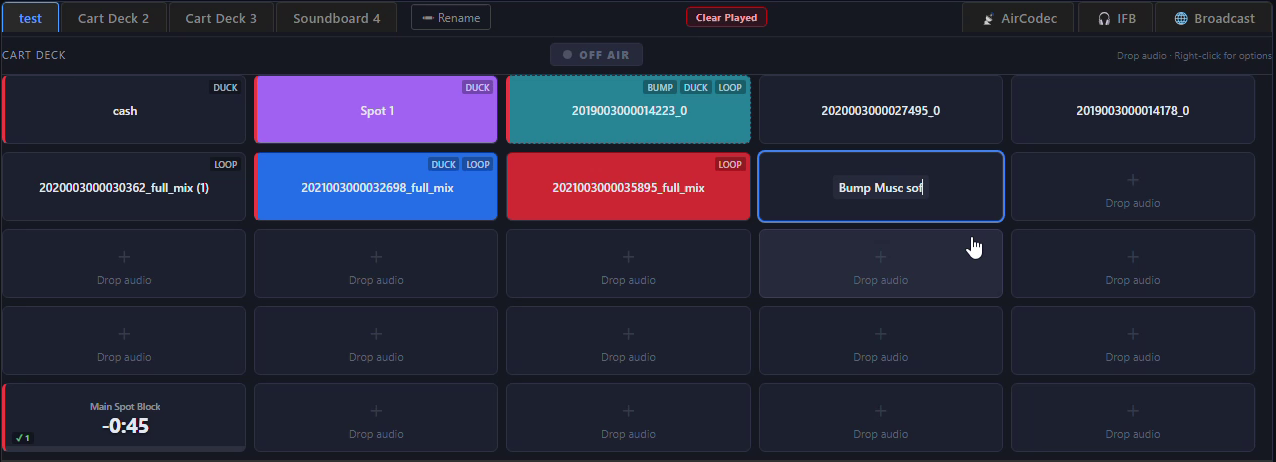
Name it
You
Right-click the cart, choose Rename, and type a name you will recognise in a hurry.
SportsCaster Pro
Shows the name on the cart.
 Enlarge
Step 3 of 5
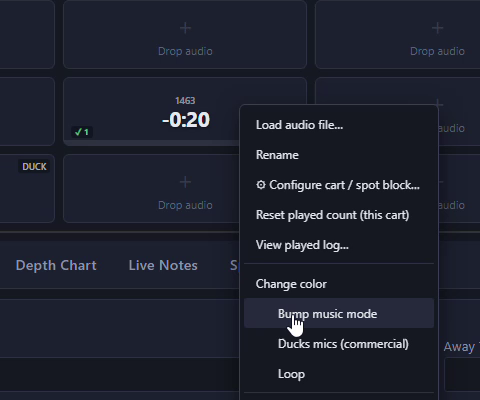
Turn on bump music mode
You
Right-click the cart and tick Bump music mode.
SportsCaster Pro
Tags the cart BUMP. When you stop it, the bed fades out smoothly instead of cutting off. You set how long the fade is in Settings.
 Enlarge
Step 4 of 5
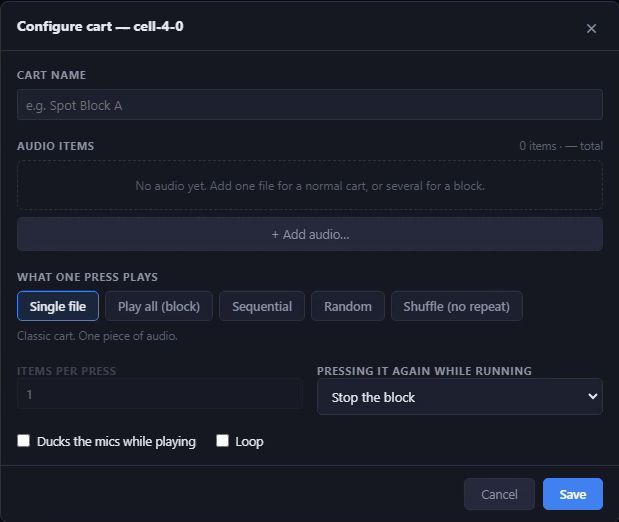
Rotate several beds
You
Right-click, choose Configure cart, click Add audio and pick several beds. Then choose Sequential, Random or Shuffle (no repeat).
SportsCaster Pro
Plays the next bed every time you press the cart, so the same one does not run every break.
 Enlarge
Step 5 of 5
Play it
You
Press the cart. Tick Loop if a bed has to run under a long segment.
SportsCaster Pro
Counts the bed down on the cart, and ticks it with its play count once it has run.
SportsCaster Pro
$599
The whole remote kit on one PC, in two-channel and four-channel versions.
Requires a Behringer UMC or Focusrite Scarlett audio interface.See which models

SportsCaster Pro works with the interface through ASIO®. ASIO is a trademark of Steinberg Media Technologies GmbH, registered in Europe and other countries.
On every cart
Right-click any cart.
Everything a cart can do is on its right-click menu. Here is what each line does.
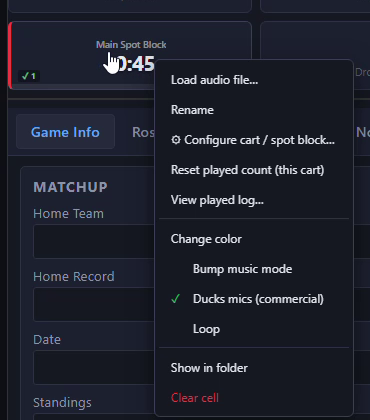
- Load audio file…Puts a file on the cart. Dragging one in from Windows Explorer does the same.
- RenameGives the cart a name you will recognise in a hurry, like the sponsor.
- Configure cart / spot block…Holds several files on one cart. Choose what one press plays (a single file, the whole block, the next in order, a random one, or a shuffle with no repeats) and what a second press does (stop, skip to the next, fade out, or ignore it).
- Reset played count (this cart)Sets this cart's play tick back to zero.
- View played log…Shows every time this cart has played.
- Change colorColours the cart so it is easy to find on a busy wall.
- Bump music modeTags the cart BUMP and fades it out smoothly when you stop it.
- Ducks mics (commercial)Tags the cart DUCK and mutes every mic while it plays.
- LoopTags the cart LOOP and keeps it playing until you stop it.
- Show in folderOpens the folder the cart's file lives in.
- Clear cellEmpties the cart.
Four banks
The tabs across the top switch between four banks of carts. Press Rename to name a bank for what it holds.
Tags at a glance
DUCK, BUMP and LOOP in the corner of a cart show how it is set up, before you press it.
Clear Played
Wipes the play tick off every cart at once, so the next game starts clean.