

RDS and data
Your RDS rides with your audio.
The automation that knows what is playing is at the studio. The encoder that puts it on air is at the transmitter. AirCodec joins them on the codec link you already depend on — no second connection, no VPN, no data service. Run as many routes as the site needs, each with its own ports or port range, for FM RDS, HD channels and anything else at the site. And on a Direct link with a connection password, the data is encrypted with the audio.
Nothing extra runs at either end. The data path comes up and goes down with the link itself.
Your station's data, off the open internet
The usual way to get RDS to a transmitter site is to open a second path to it — another internet connection, a VPN, a forwarded port, a third-party data service. Every one of those is a door into the site that has to be bought, configured and defended. AirCodec does not add one.
A second path to the transmitter
- A second circuit or service to pay for
- A port forwarded, or a tunnel to keep up
- Another thing that fails on its own while the audio stays up
- Another door to the transmitter site
Inside the link you already trust
- No second circuit, VPN or data service
- Nothing new exposed at the transmitter site
- Encrypted with the audio on a Direct link with a connection password
- The data path lives and dies with the link — one thing to watch
AES-256 on a Direct link
Set a connection password on a Direct link and the data is encrypted alongside the audio with AES-256. The password itself never crosses the network.
You choose who may send
The Input side accepts data from this computer only, this computer's network, any private network, or a list of addresses you set. Anything else is refused — and every refusal is logged with the address it came from.
Passed through untouched
AirCodec does not read, parse or alter what you send. Every piece is numbered and confirmed on arrival, resent if it drops, and delivered once and in order — so the text on air matches what the automation sent.
Where it is encrypted, and where it is not. Encryption applies on a Direct link carrying a connection password. Over a SIP call the data travels inside the call, through your SIP server, and AirCodec does not encrypt it there. If the data must be private across the public internet, use a Direct link with a password.
As many routes as the site needs
A route is one data path across the link, with its own name, its own transport and its own ports. Add as many as you need — one for FM RDS, another for an HD channel, another for something else at the site entirely — and each one runs on its own, over the same codec link.
Name each route
Call it what it is — FM RDS, HD2, whatever the site uses — so the next engineer can see at a glance what each path carries.
Port ranges, not just one port
Set a PORT and a TO PORT and the route carries the whole range. HD data that needs several ports takes one route, not one route per port.
TCP or UDP, per route
Each route picks its own transport on each side, so one can run UDP while another runs TCP, on the same link at the same time.
Input, Output, or both
Tick Input on the codec your automation sends to, Output on the codec beside the encoder — or both on a codec where data runs in both directions.
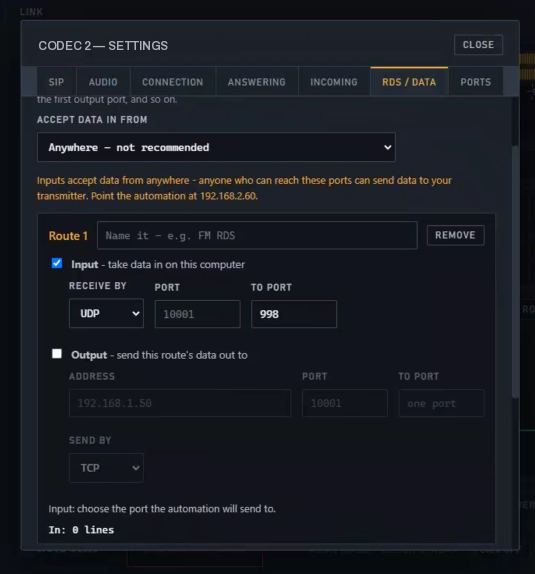
At the studio, tick Input on a route
Choose TCP or UDP, a port, and a TO PORT if the route needs a range. Then choose who may send: this computer only, this computer's network, any private network, a list of addresses, or anywhere. AirCodec tells you the exact address and port to point the automation at.
 Open full size
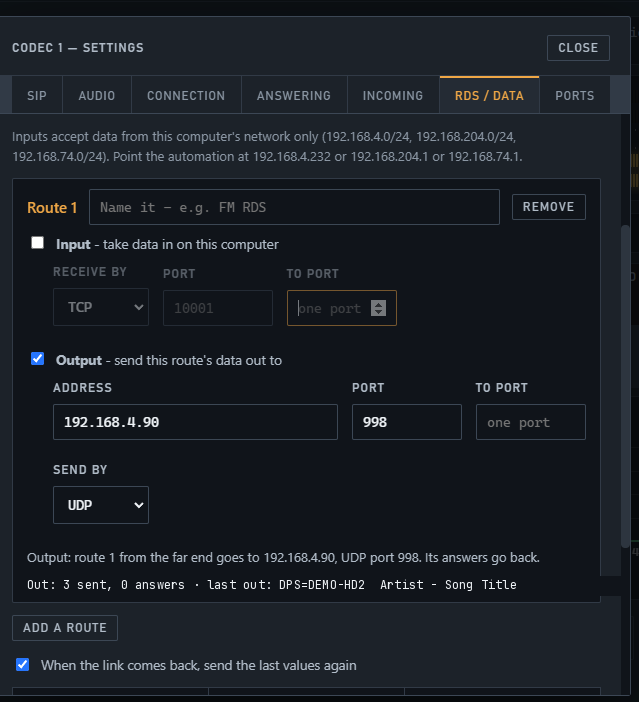
At the site, tick Output on the matching route
Enter the encoder's address, its port, and a TO PORT for a range. Whatever arrives on that route goes straight out to the encoder, and whatever the encoder answers goes back across the link to the automation.
 Open full size
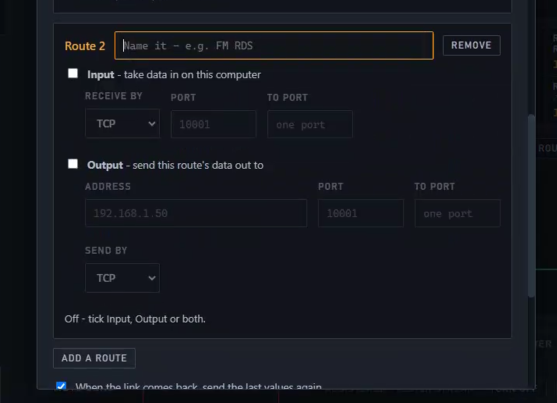
Add another route for the next path
Press ADD A ROUTE and fill in the next one. Each route keeps its own name, transport, ports and direction, and REMOVE takes one away without touching the others.
 Open full size
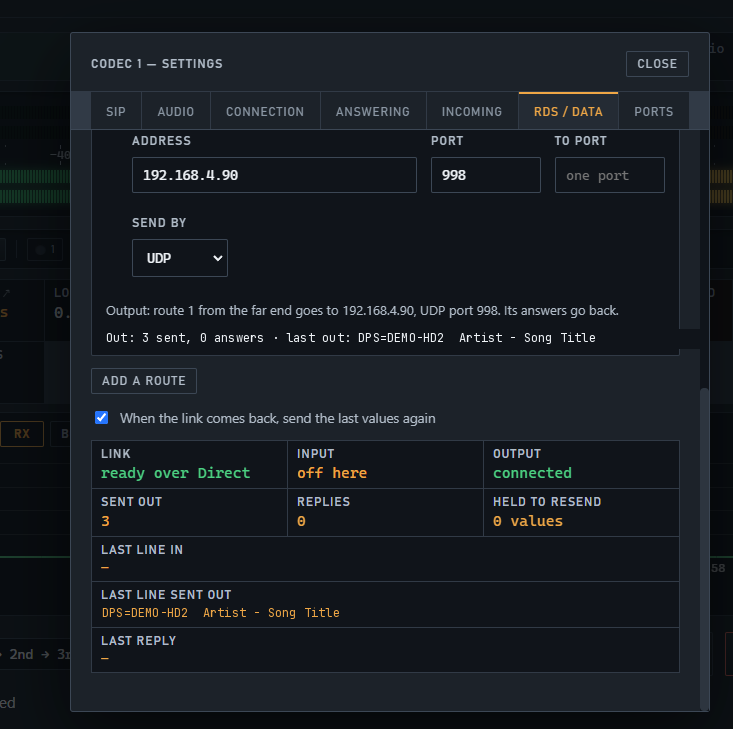
Then watch it work
The same page carries the live display: the link and how it is carried, whether Input and Output are connected, how much has been sent, how many replies came back, how many values are held to resend, and the last line in each direction.
 Open full size
One option, on by default. When the link comes back, AirCodec sends the latest value of each command again — so listeners never see text left over from before the drop.
What stations use it for
The automation sends each new title to the studio AirCodec exactly as it would to a local encoder. The site AirCodec delivers it.
The same path carries every RDS command the automation or an engineer sends.
No separate internet connection, data line or VPN is needed at the transmitter for RDS.
When the connection list falls back from the main link to a backup, the data moves with it — with nobody touching it.
Where the automation checks what the encoder answers, those answers come back the same way.
HD data that needs a block of ports takes one route with a port range, rather than a route for every port.
One route for FM RDS, another for HD, another for site equipment — each named, each with its own transport and ports.
It is not only RDS. Equipment at the site that takes commands over TCP or UDP can be reached the same way.
What it needs, and what it does not do
Tell us what your automation sends and what encoder is at the site, and we will tell you straight whether AirCodec can carry it — and which transport to use.